Personal LLMs and Agents is an area I’m focusing on this year. I’m in the phase where I’m prototyping what that looks like. What works well for me is using the combination of Claude Code and Obsidian as my notes. Since Claude Code has local access to Obsidian and the Markdown files, it makes updating notes and automating work simple. However, I don’t fully automate everything. The reason is that there is a big difference between information and knowledge. Information is raw data: facts, signals, and observations that are available “as is.” Knowledge is what you get after interpreting, connecting, and internalizing that information so it can guide judgment and action. In other words, information can be stored and transmitted easily, while knowledge is embedded understanding in a person or system that changes how decisions are made.
This is why, regardless of any LLM breakthrough, I will always start ideas on physical paper first. I have more than a decade’s worth of LECHTTURM 1917 notebooks I’ve kept over the years. This includes personal notes along with important information throughout my professional career. Though I retained a lot of the memory through writing it down, there are thousands of pages lost as bits of information.
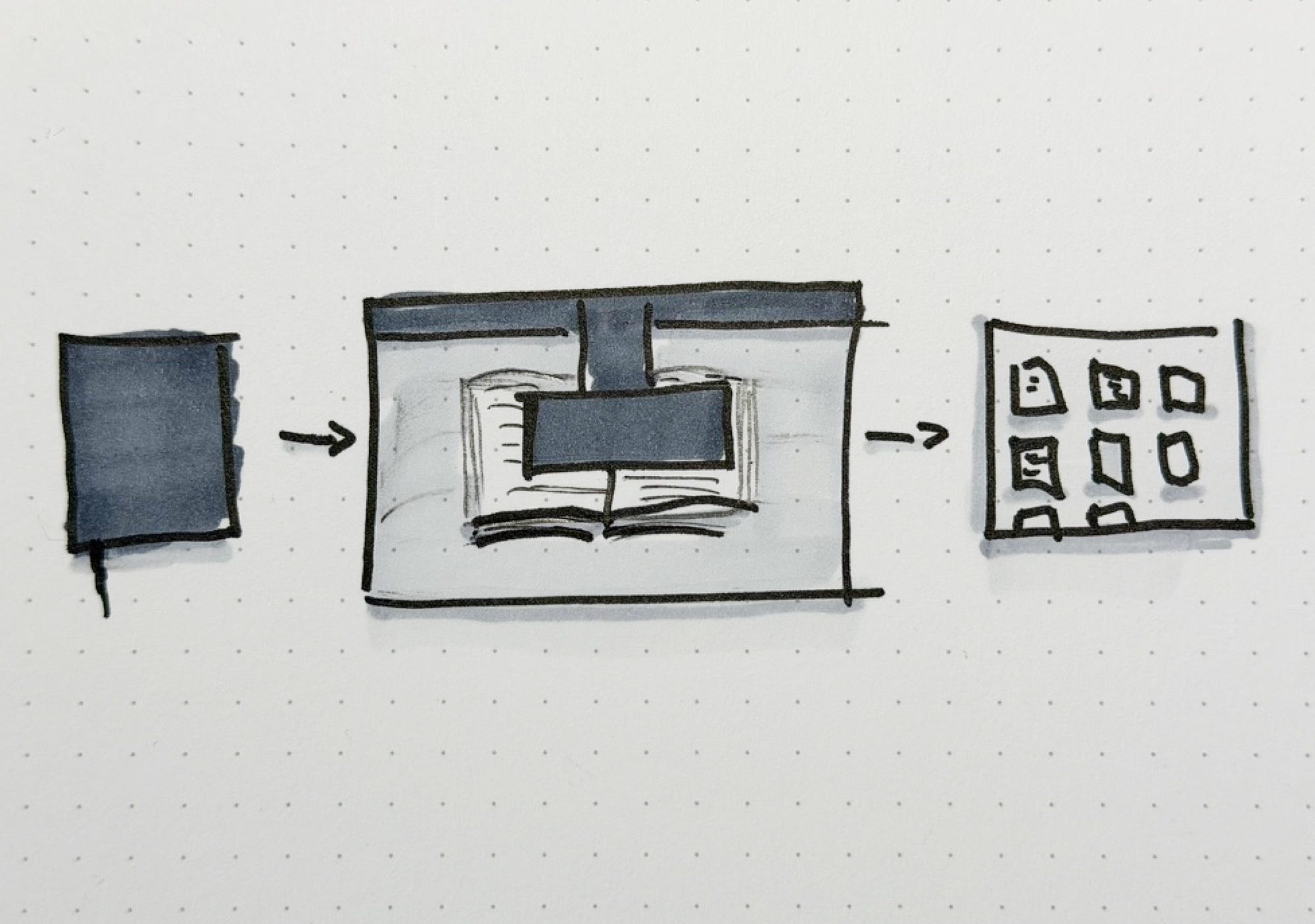
That’s when I had the idea: digitize all my hand-written notes and turn it into knowledge and context. This post is a walkthrough of the tools I used to make it happen, the workflow, and tips on getting started if you start analog like me.
I recently went big and got a CZUR ET24 Pro Professional Book Scanner to digitize my notes. It’s not cheap, but like many things in life, costly things are well worth the money for quality. This is a professional book scanner that captures in high resolution camera, auto-flattening, and even a foot pedal to feel like Lars Ulrich from Metallica as you’re scanning notes. There are less costly alternatives, such as the Scanner Pro mobile app or even scanning with your native device's capture.
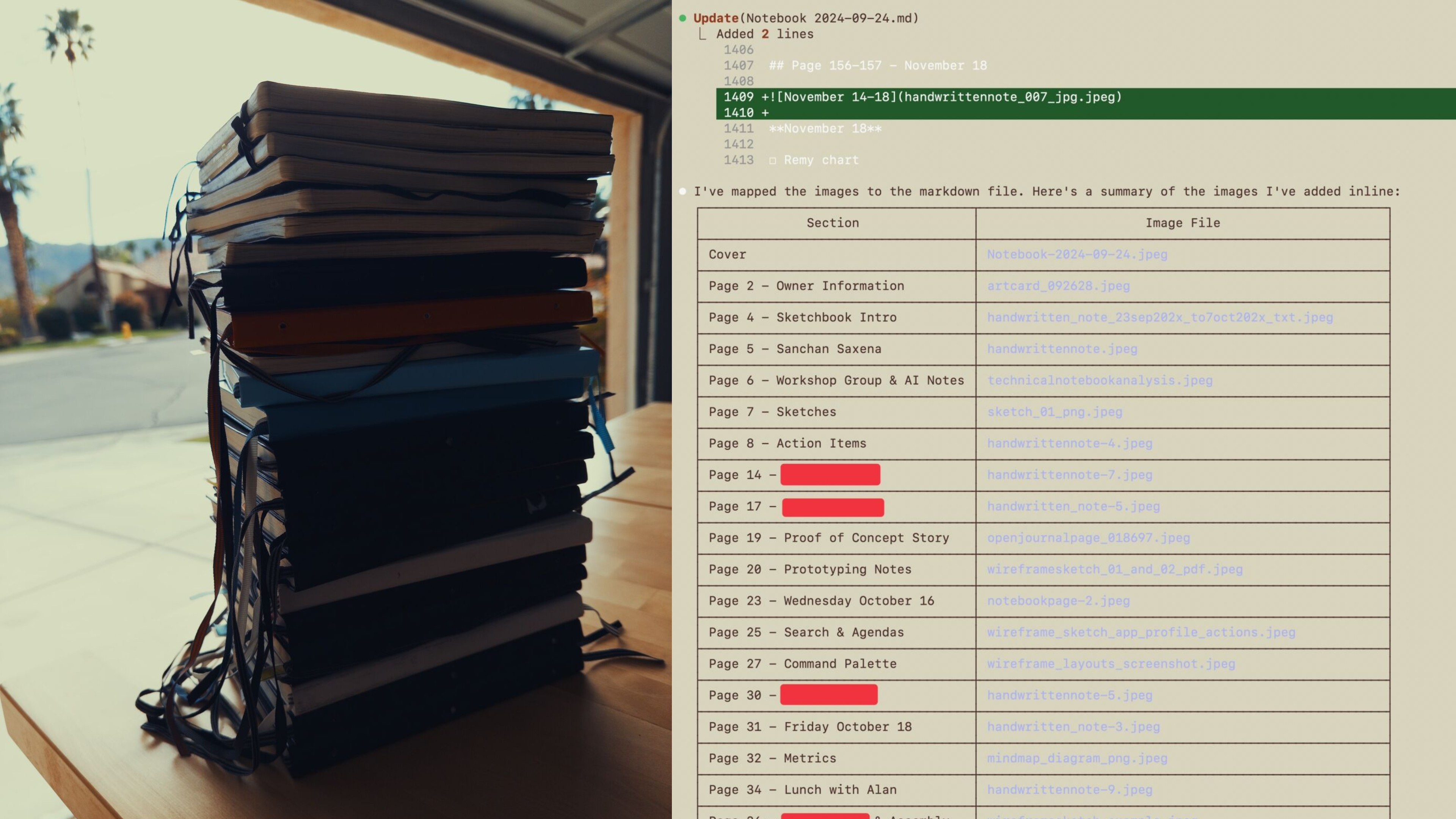
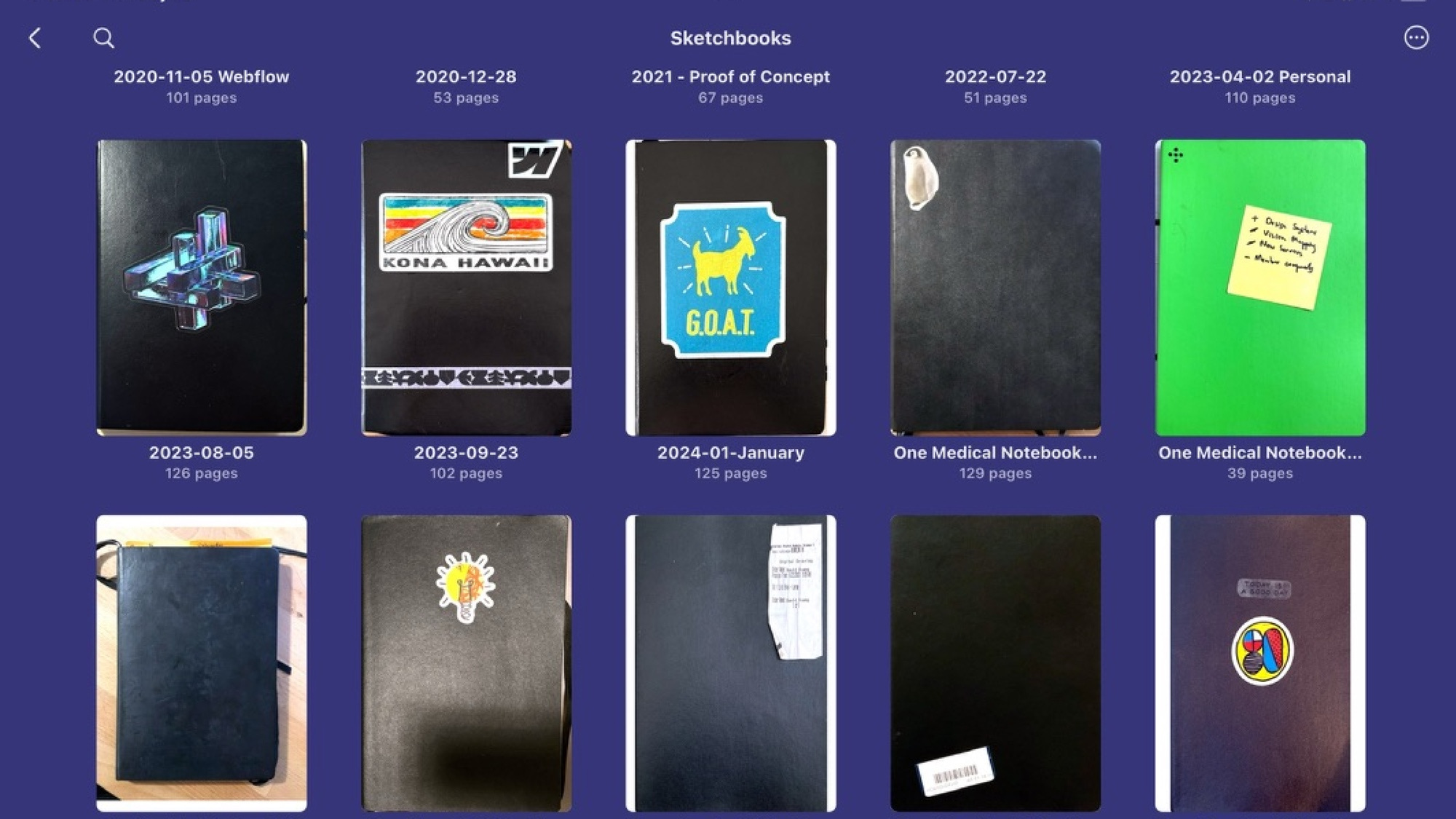
I’ve covered my notebook of choice exhaustively at this point. The LEUCHTTURM1917 A5 dot grid has been my tool of choice for more than 10 years. My recommendation is to pick a notebook style you get familiar with. Over the years, I memorized the number of dots I need to make slide decks, diagrams, and other drawings. Switching up to another notebook throws me off. Pick the one you love!
Like a physical notebook, the best writing software is the one that works for you; it’s Obsidian for me. I love the local file structure with the ability to customize with plugins and themes. You could use this with any note-taking app of your choice. However, to get the best results, I recommend an app that supports Markdown, which the LLMs love. That’s my issue with a lot of note-taking apps that have proprietary file formats. I don’t want to export and have the files live with the LLM constantly.
I use Rovo Dev at work, but on my personal content, Claude Code CLI is my tool of choice. This is the tool I use to feed the scanned notebooks to
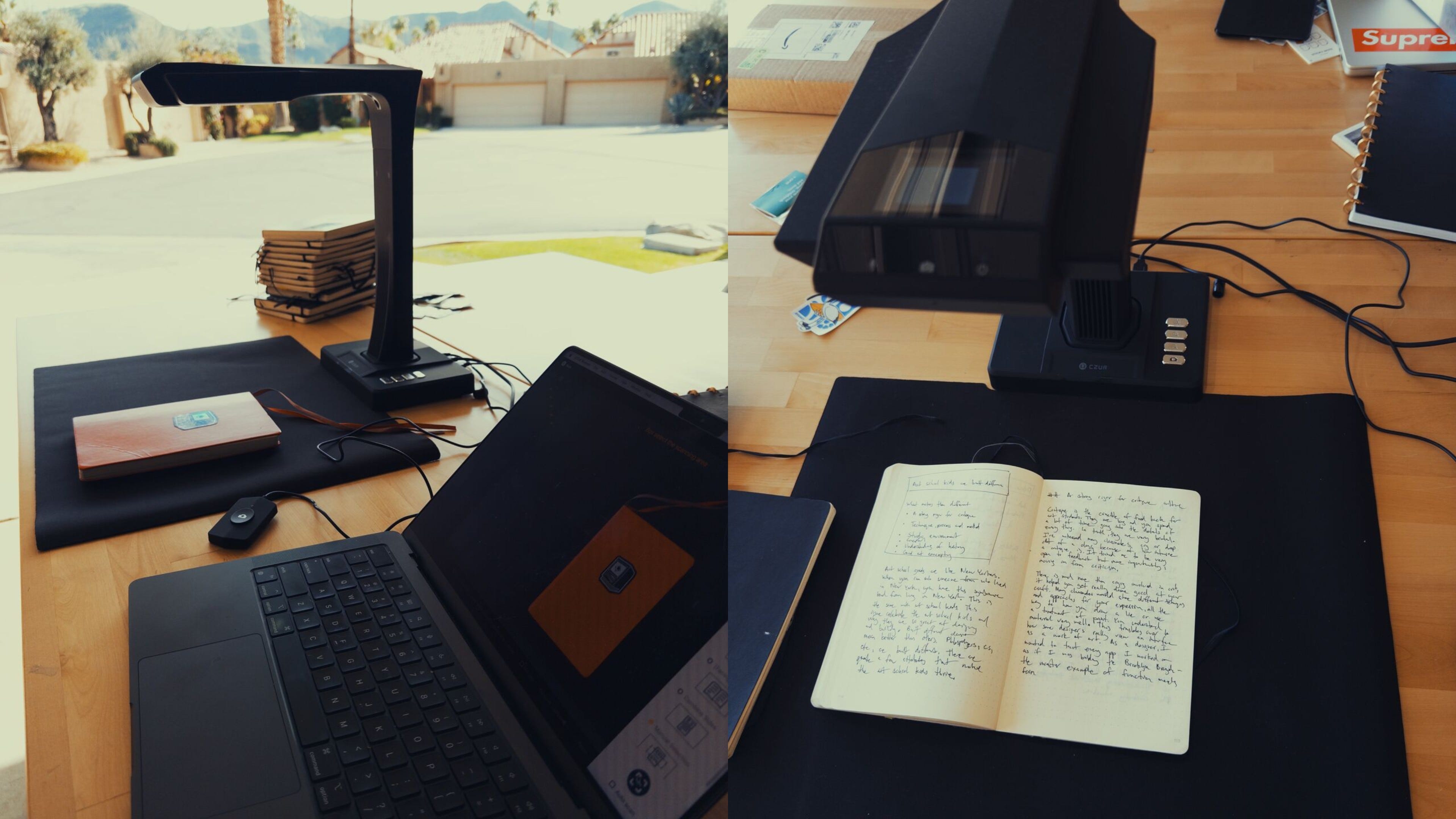
Export your notebook pages as high-resolution images or PDFs. I use the CZUR ET24 Pro at its highest resolution setting. Key considerations:
Use consistent lighting to ensure legibility
Scan in batches by notebook or time period
Name files with a prefix for organization (e.g.,
notebook-2024-01-page001.jpg)Store scans in a dedicated folder (I use
Scans/Notebooks/in my vault)
Set up a folder structure for your digitized notes:
dh-notes/
├── Scans/
│   └── Notebooks/          # Raw scanned images
└── Notebooks/
    └── Transcribed/        # Output markdown notes
I have a custom skill called sketchbook-to-obsidian configured in Claude Code that handles this. The skill:
Analyzes the scanned image - Claude reads the handwritten content, even in messy handwriting, it’s been trained on
Transcribes the text - Converts handwriting to typed text, preserving structure
Identifies themes and topics - Extracts key concepts, names, dates, and ideas
Creates structured markdown - Outputs an Obsidian note with:
Frontmatter (date, source notebook, tags)
Transcribed content organized by section
Embedded original image for reference
Extracted action items or tasks
Suggested wikilinks to connect with existing notes
Example prompt to Claude Code:
Convert the scanned notebook page at Scans/Notebooks/notebook-2024-page042.jpg into an Obsidian note. Extract themes, transcribe text, and suggest connections to my existing notes.The AI-generated note is a starting point, not the end. This is where knowledge (not just information) gets created:
Review the transcription for accuracy
Add your own reflections and context
Create wikilinks to related notes manually
Tag with relevant topics
Move actionable items to your task system
After processing multiple notebooks, patterns emerge. I create “superprompts” that:
Reference clusters of related notes
Synthesize insights across time periods
Generate action plans from dormant ideas
Connect old concepts to current projects
This is the step Sean Oliver nailed in his comment on my LinkedIn post: “The notebook graveyard is real... Your move from scanning to superprompts is the part most people skip. They think capture is enough.” Capture is step one. The superprompt turns dormant information into active knowledge.
You can replace Obsidian with any file or note-taking app that supports markdown. The key is having Claude Code with local file access to both read scans and write structured notes
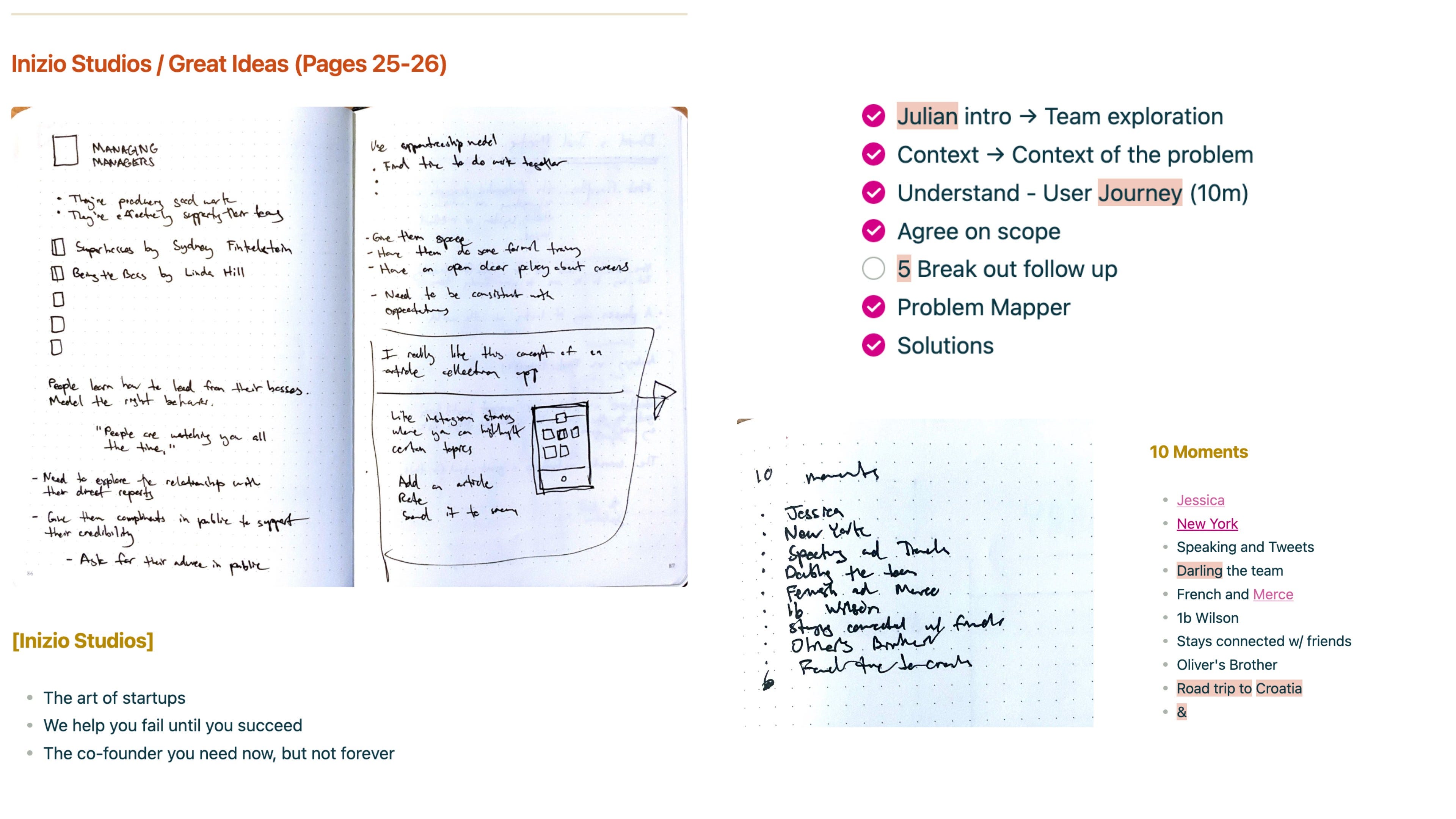
If you are a hand-written notetaker like me, I hope this gives you an idea of how you can make sure your important notes don’t get lost as bits of information. There are likely tons of ideas we wish you remembered that AI can help you recall.
Here are a few tiny tips I learned along the way:
A sticker to distinguish each notebook and make it easier to recognize if you need to pull the original
Train the LLM by running it through notes to recognize your handwriting. It’s time to keep writing, “The quick brown fox jumps over the lazy dog.”
Now that I’ve seeded the past decade of notebooks, perhaps I can now remember to turn it to knowledge and context as I go!
We’re hiring a Lead Product Designer, AI, on my team at Atlassian. I can assure you, this is the most ambitious team I’ve worked on
Two other roles that work closely with me: Lead Product Designer, Marketplace, Senior Product Designer, Developer AI
Before you think about buying a Mac mini to run Clawdbot, sponsor the amazing contributors of the project (I did this, but also bought a Mac mini)